JoyCheck
Haptics
Buttons
Axes
Deadzone & response curve
Latency tester
Vibration presets
Event log
Input heatmap
Keyboard
Keyboard fallback active. WASD/Arrows for sticks, 1-4 face buttons, Q/E bumpers, Z/C triggers.
Drift · Resting value · Deadzone · Trend
Test your controller for stick drift. Right in the browser.
Stick drift is an analog stick that reports movement while your hands are off it. JoyCheck reads the live X and Y values so you can see a resting stick sitting away from center, the signature of drift, before any game hides it behind a deadzone. No install, no account, no telemetry.
- browser-side
- no install
- W3C Gamepad API
Works best on desktop. Plug a controller in there.
HOW IT WORKS
How do you test for stick drift in 30 seconds?
Rest and read
Plug in or pair the pad, set it flat on a table, and take your hands off both sticks. Both X and Y should read near 0.00. A steady value away from zero is drift.
Hold for 30 seconds
Leave the sticks untouched for a full 30 seconds. Intermittent drift often shows up only after the stick settles, so a single glance can miss it.
Re-test after a fix
After cleaning, recalibrating, or swapping the stick, read the resting value again. A fix worked only if the number dropped back toward 0.00 and stays there.
READING THE NUMBERS
What does stick drift look like in the tester?
Drift is read off the same normalized -1.0 to +1.0 scale the W3C Gamepad API uses, so you judge it by the live numbers rather than by feel. Use these four checks as a reference frame: a small flicker is normal, and only a steady or growing offset needs fixing.
Resting value
Rest both sticks and read X and Y. Within about 0.02 of 0.00 is healthy sensor noise. A steady offset a menu cursor follows is drift the game reads as movement.
Deadzone crossing
Watch whether the resting value pushes past the neutral band. A value that stays inside is masked by the deadzone; one that crosses it leaks real input into your game.
Trend over time
Note today's resting value and check again in a week. A stable offset is a calibration job; a value that keeps climbing is physical wear that recalibration cannot hold.
One stick or both
Check the left and right sticks separately. Drift usually starts on one stick, most often the left, so a clean right stick does not clear the left.
The JoyCheck controller tester doubles as a stick drift test: rest the sticks, watch the live X and Y values, and a reading that sits away from 0.00 while your hands are off the pad is drift, read straight through the W3C Gamepad API with nothing sent to a server.
Drift · Resting value · 30-second hold · 7 min read
Stick drift is an analog stick that reports movement while you are not touching it, and a browser stick drift test is the fastest way to confirm it. The W3C Gamepad API[1] reports each stick axis on a fixed -1.0 to +1.0 scale where 0.0 is the neutral center, so a drifting stick has a clear signature: a steady nonzero value at rest. Connect the controller, rest it flat, and the number tells you what your hands cannot feel.
◆ VERIFIED
The W3C Gamepad API specification defines analog axes as values normalized to -1.0 to +1.0, with 0.0 as the neutral resting position[1]. JoyCheck reads those raw values directly, so a resting stick reporting anything other than 0.0 is reporting drift, before any console or game re-centers it. No installer or telemetry sits in between.
Source: W3C Gamepad API specification
Updated on 2026-07-07 by Taimoor Bamazai, founder of Elites Algorithm Limited (a registered tech company in Dublin, Ireland) and the builder behind JoyCheck.
Key takeaways
- Stick drift is a resting stick that reports a nonzero value with your hands off it.
- A browser stick drift test reads that value live, before any game hides it behind a deadzone.
- Rule of thumb: resting within 0.02 of 0.00 is healthy, 0.05 to 0.15 is treatable, above 0.15 is worn.
- Recalibration and cleaning only mask drift, because physical wear brings the offset back.
- A lasting fix is a stick-module swap or a Hall-effect or TMR controller.
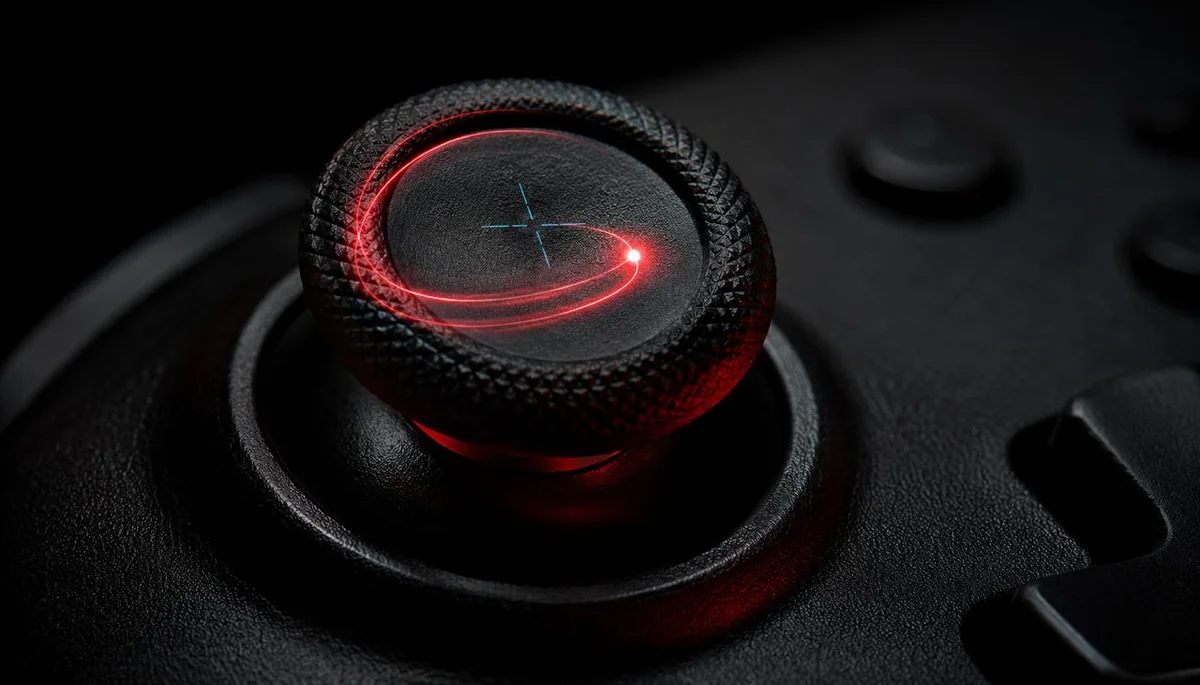
How do you test for stick drift?
You test for stick drift by reading the resting position of each analog stick on a browser tester. Set the controller flat, take your hands off both sticks, and watch the X and Y values: a steady reading away from 0.00 while you are not touching the pad is drift the game will read as movement.
Run it as a short protocol, not a single glance. Each step isolates a different way drift shows up, so together they separate a genuine fault from normal sensor noise.
- Read the resting position. Rest the pad flat, hands off, and read X and Y. Healthy sticks flicker within about 0.02 of 0.00.
- Check the deadzone crossing. Watch whether the resting value pushes past the neutral band. A value that crosses it is what a game reads as real input.
- Hold for 30 seconds. Leave the sticks untouched for a full 30 seconds, because intermittent drift often appears only after the stick settles or warms up.
- Re-verify after a fix. Once you clean, recalibrate, or replace the stick, read the resting value again to confirm it dropped back toward 0.00.
The online gamepad tester shows every value as it changes, so you can walk the four steps in under a minute.
How do I know if I have stick drift?
You know you have stick drift when the game moves without you: the camera pans on its own, a menu cursor slides, or your character walks while the sticks sit still. Those symptoms are the prompt to test, not proof on their own, because a low in-game deadzone can cause the same feel.
The confirmation is numeric. Rest the controller flat in a tester and read the resting value, and a steady offset above roughly 0.05 on either axis is drift rather than a game setting.
Test both sticks the same way. Drift usually starts on one stick, most often the left, so a clean right stick does not clear the left.
What resting value counts as stick drift?
As a rule of thumb on the normalized -1.0 to +1.0 scale, a resting stick within about 0.02 of 0.00 is healthy, 0.05 to 0.15 is treatable drift, and anything above 0.15 is a worn sensor. These are working bands from our own diagnostic testing, not a manufacturer specification, so read them as a guide rather than a hard line.
| Resting value (X or Y) | What it means | What to do |
|---|---|---|
| 0.00 to 0.02 | Healthy sensor noise | Nothing |
| 0.03 to 0.05 | Borderline, keep an eye on it | Re-test in a week |
| 0.05 to 0.15 | Treatable drift | Recalibrate or raise the deadzone |
| Above 0.15 | Worn sensor | Replace the stick or the controller |
The single most useful number is not today’s reading but its trend. A value that holds steady is a calibration job; a value that climbs week over week is wear, and wear only ends with new hardware.
Can stick drift actually be fixed?
Stick drift can be masked, and sometimes cleared for a while, but rarely fixed for good in software. Recalibration re-centers the reported value, a deadzone bump hides a small offset, and compressed air with isopropyl alcohol occasionally revives a dirty stick.
Because drift is physical wear on the sensor, those fixes are temporary and the offset tends to return. The honest expectation is a few more weeks of play, not a cure.
A lasting fix is hardware. Replacing the stick module ends the drift, and a Hall-effect or TMR controller removes the wear mechanism entirely. The full repair ladder, cheapest to most durable, is in how to fix controller stick drift, and the mechanism behind it is covered in stick drift, explained.
Is there a website to check stick drift?
Yes. JoyCheck is a browser-based stick drift test: open the page, connect your controller, and it reads the live stick values through the W3C Gamepad API[2] with nothing installed and nothing uploaded. Because it reads the raw hardware report before any game applies a deadzone, it often shows drift earlier than an in-game screen does.
That is the difference from testing inside a game. A game shows you filtered input after its own deadzone, so a small drift stays hidden until it grows; the browser shows the unfiltered value the moment it appears.
It also runs anywhere a modern browser does, on Windows, macOS, Linux, and mobile, with no driver install, so the same test works across every device you play on.
What a browser test can and cannot tell you
A browser stick drift test reads exactly what your operating system reports for the controller, which is enough to confirm drift, measure how bad it is, and check whether a fix worked. What it cannot do is repair a worn sensor or open the controller, so it is a detection tool, not a repair tool.
Once the resting value confirms wear[3], the fix is hardware, and the path depends on your controller. Start with the platform calibration guides to rule out a soft center error, then move to a module swap if the offset returns.
For the platform steps, the PS4 controller calibration guide and the Xbox controller calibration guide cover the exact recalibration paths, PS5 controller stick drift covers the DualSense case, and the deadzone tester reads the resting and edge band you would tune around a mild offset.
Sources and references
-
W3C Gamepad API specification. The W3C standard defining analog axes as values normalized to -1.0 to +1.0 with 0.0 at the neutral center, the poll-based interface JoyCheck reads, and the user-gesture requirement every modern browser implements before it exposes a connected gamepad.
-
MDN Web Docs: Gamepad API. Mozilla’s developer reference covering the axes and buttons arrays, browser-native gamepad reading, and the animation-frame polling cadence used to sample stick values live.
-
Analog stick drift, Wikipedia. Background on the wear mechanism behind analog stick drift, including the potentiometer contact-track degradation that a software recalibration cannot reverse.
Frequently asked questions about stick drift
How do you test for stick drift?
Open a browser stick drift test, connect the controller, and press a button to wake the Gamepad API. Set the pad flat with both thumbs off the sticks and read the X and Y values. A healthy stick rests near 0.00; a steady nonzero reading with your hands off it is drift.
Is there a website to check stick drift?
Yes. JoyCheck is a browser stick drift test that reads your controller's live stick values through the W3C Gamepad API, with nothing installed and nothing uploaded. Rest the sticks and watch the X and Y readouts: a steady value away from 0.00 while you are not touching them is the signature of drift.
How do I know if I have stick drift?
You have stick drift when the game reacts while your hands are off the sticks: the camera pans, a menu cursor slides, or your character creeps. Confirm it by resting the controller flat in a tester and reading the X and Y values. A steady offset above roughly 0.05 while untouched is drift.
Can stick drift actually be fixed?
Sometimes. Light drift can be masked by recalibration or a deadzone bump, and cleaning the stick occasionally helps. But drift is physical sensor wear, so those fixes are temporary and the offset returns. A lasting fix means replacing the stick module or switching to a Hall-effect or TMR controller.
What resting stick value counts as drift?
As a rule of thumb on the -1.0 to +1.0 scale, a resting value within about 0.02 of 0.00 is healthy sensor noise, 0.05 to 0.15 is treatable drift you can mask in software, and above 0.15 is a worn sensor software cannot save. Watch whether the value holds steady or climbs over weeks.
Does stick drift get worse over time?
Usually yes. Drift comes from a physical contact track wearing down, so once a resting offset appears it tends to grow rather than heal. A value that reads 0.06 today and 0.12 a month later is worsening wear, which is the point to plan a stick-module swap or a Hall-effect replacement.
Why does my stick drift in games but not in the tester?
A stick that reads clean at rest in the tester but drifts in a game is often a game deadzone set too low, an intermittent fault that only appears after warm-up, or a wireless connection issue. Run the 30-second hold test, then test wired, to separate a hardware fault from a game-side setting.
Check your controller for drift in the browser
No install, no account. Your inputs never leave your device.