JoyCheck
Haptics
Buttons
Axes
Deadzone & response curve
Latency tester
Vibration presets
Event log
Input heatmap
Keyboard
Keyboard fallback active. WASD/Arrows for sticks, 1-4 face buttons, Q/E bumpers, Z/C triggers.
Calibration · Center · Range · Triggers
Test your controller calibration. Right in the browser.
Calibration is whether your controller reports inputs truthfully: sticks that rest at center, reach full range, map the right way, and triggers that sweep cleanly from 0 to 1. JoyCheck reads all four live so you can see exactly what yours does. No install, no account, no telemetry.
- browser-side
- no install
- W3C Gamepad API
Works best on desktop. Plug a controller in there.
HOW IT WORKS
How do you test controller calibration in 60 seconds?
Center and rest
Plug in or pair the pad, set it flat on a table, and take your hands off both sticks. Both X and Y axes should read near 0.00. A steady offset is a center that needs recalibrating.
Sweep the full range
Roll each stick slowly into all four corners. A well-calibrated stick reaches close to -1.00 and +1.00 on both axes, without stopping short or capping early.
Triggers and buttons
Pull L2 and R2 all the way. Each analog trigger should climb evenly from 0.00 to 1.00. Press every button to confirm each one registers once.
READING THE NUMBERS
What does a correctly calibrated controller look like?
Calibration is read off the same normalized -1.0 to +1.0 scale the W3C Gamepad API uses, so you can judge it by the live numbers rather than by feel. Use these four checks as a reference frame, not a pass-fail verdict, because a small imperfection is normal and only a large or growing one needs fixing.
True center
Rest both sticks and read X and Y. A calibrated stick sits within roughly 0.02 of 0.00. A steady offset that a menu cursor follows means the center is off, which recalibration can correct.
Full range
Roll each stick to its edge. Both axes should reach close to -1.00 and +1.00. Falling short of about 0.90 means the stick under-reports its range, so full-speed inputs never land.
Axis integrity
Push up and watch Y go negative, push right and watch X go positive. Swapped or inverted axes point to a driver or mapping problem, not a worn stick.
Trigger sweep
Squeeze L2 and R2 slowly. Each should rise smoothly from 0.00 to 1.00 and return to 0.00. A trigger that jumps, caps below 1.00, or never resets is worn or miscalibrated.
The JoyCheck controller tester doubles as a controller calibration tester: rest the sticks, sweep them to the edges, and pull the triggers, and the live numbers tell you whether your controller reports input truthfully, read straight through the W3C Gamepad API with nothing sent to a server.
Calibration · Center vs range · Axis mapping · 8 min read
Calibrating a controller means lining up what the hardware reports with what your hands actually do, and you can check that alignment by reading four live values. The W3C Gamepad API[1] reports each stick axis and analog trigger on a fixed scale, so a calibrated pad has a clear signature: sticks resting near 0.00, edges reaching close to 1.00, axes pointing the right way, and triggers climbing evenly to full press. Connect the controller, watch those numbers, and you have tested your calibration without installing anything.
◆ VERIFIED
The W3C Gamepad API specification defines analog axes as values normalized to the range -1.0 to +1.0, with 0.0 representing the neutral center position[1]. JoyCheck reads exactly those raw axis and button values, so what you see is the hardware’s own report, before any console, driver, or game re-centers it. No installer or telemetry sits in between.
Source: W3C Gamepad API specification
Updated on 2026-07-05 by Taimoor Bamazai, founder of Elites Algorithm Limited (a registered tech company in Dublin, Ireland) and the builder behind JoyCheck.
Key takeaways
- Calibration is whether a controller reports input truthfully: center near 0.00, edges near 1.00, axes mapped right, triggers sweeping evenly.
- Four quick checks cover it: true center, full range, axis integrity, and trigger sweep.
- A steady resting offset, a stick that stalls short of 1.00, or a trigger that caps early are the signs recalibration can correct.
- Calibration re-centers reported values but cannot repair a worn sensor, so drift that returns after calibrating is a hardware fault.
- The browser reads raw values before any game applies its own tuning, so the tester shows problems earlier than an in-game screen does.
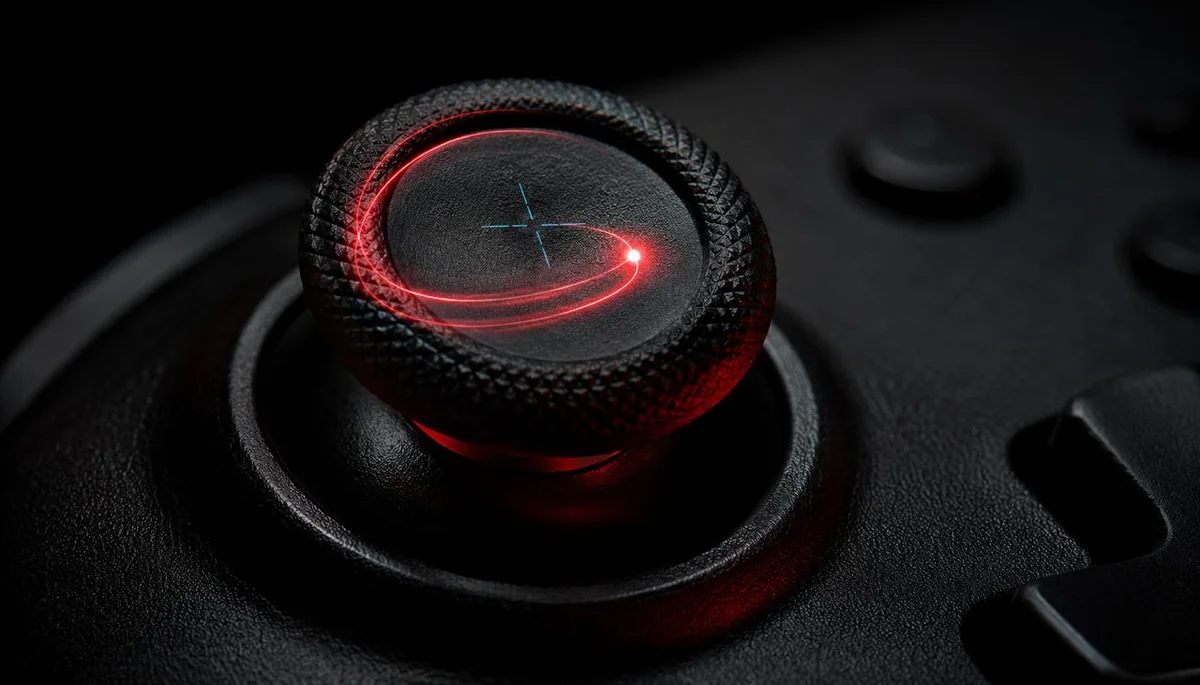
What does it mean to calibrate a controller?
To calibrate a controller is to align the values its sticks and triggers report with your real physical input, so center reads as center and full travel reads as full. Every analog part settles a little away from the factory ideal, and calibration nudges the reported numbers back into line.
Truthful numbers in, truthful input out.
It matters because a game only ever sees the number the controller sends. A resting stick that reports 0.06 instead of 0.00 makes your character creep and your aim pull while your hands sit still.
The scale is what makes calibration checkable. Every axis runs from -1.0 to +1.0 with 0.0 at center, and each analog trigger from 0.0 to 1.0,[1] sampled live through the polling loop browsers refresh many times a second.[2] A calibrated pad lands where those numbers say it should, before any console or game layers its own correction on top.
How do I test if my controller is calibrated correctly?
You test calibration by reading four live values in order: the resting center, the full-range edges, the axis direction, and the trigger sweep. Each one isolates a different part of the controller, and together they tell you whether the pad reports input truthfully or needs a fix.
| Check | What good looks like | What a fault looks like |
|---|---|---|
| True center | Both axes rest within about 0.02 of 0.00 | A steady offset the cursor follows |
| Full range | Edges reach near -1.00 and +1.00 | Peaks stall well short of 1.00 |
| Axis integrity | Up sends Y negative, right sends X positive | Swapped or inverted axes |
| Trigger sweep | L2 and R2 climb evenly 0.00 to 1.00 | Jumps, an early cap, or no return to 0 |
Running each on JoyCheck takes under a minute. Press any button first, because the Gamepad API hides a controller until you give it a gesture, then work down the table: rest the sticks, sweep them, check the directions, and pull the triggers. The gamepad tester shows every value as it changes.
What does true center look like, and what if it is off?
True center is both stick axes resting within about 0.02 of 0.00 while you are not touching them. A calibrated stick flickers gently around zero from sensor noise. A steady offset, say X parking at 0.05 and holding there, is a center error that a recalibration can pull back toward zero.
Read it as a measurement, not a glance: set the controller flat so your hands and the desk do not skew it, and watch each axis for a few seconds rather than taking one snapshot.
The number to watch is whether the offset is stable or climbing. A stable offset is a calibration job you fix once. A value that keeps rising week over week is drift, which is a different problem covered further down.
Why does my stick not reach full range?
A stick that stops short of 1.00 at the edge is under-reporting its range, so the game never sees full-speed input no matter how hard you push. On the tester, roll the stick slowly into each corner and read the peak. A healthy stick reaches close to -1.00 and +1.00 on both axes.
The usual causes are a worn gimbal, a tight outer limit set in the controller firmware, or a mapping layer clamping the value, and recalibration or an outer-range adjustment usually recovers the missing travel.
The opposite case matters too. If the stick hits 1.00 with physical travel to spare, the outer edge is over-reporting, and reading your resting and edge values on the deadzone tester shows exactly where that band sits.
What is axis integrity, and how do I check it?
Axis integrity is whether each direction moves the axis it should: push up and the Y axis should go negative, push right and the X axis should go positive. Swapped or inverted axes are a mapping or driver problem, not a worn stick, and they show up the instant you move the stick on a live readout.
This is most common on generic HID pads and on controllers running through the wrong driver or a remapping tool. The fix is a remap rather than a recalibration, because the hardware is fine and only the labels are crossed.
Check both sticks the same way. A right stick that reads on the axes you expect, in the directions you expect, has its integrity intact.
How do I test my analog triggers?
Squeeze L2 and R2 slowly and watch each trigger value climb from 0.00 to 1.00. A calibrated trigger rises evenly across its full travel and returns to 0.00 when you let go. A trigger that jumps in steps, caps below 1.00, or rests above zero is worn or miscalibrated.
Triggers matter most where partial pressure is the input, like a throttle in a racing game or aim-down-sights in a shooter, and a trigger stuck at a low resting value bleeds constant input into those games.
One detail catches people out. Some pads report their triggers as buttons rather than analog axes, so if you see only 0 or 1 with nothing in between, the controller is reporting digitally, not miscalibrated.
Calibration or drift: which problem do I actually have?
The calibration tester separates two problems people constantly confuse with each other. Miscalibration is a fixed offset or a short range that recalibration corrects; drift is a resting value that returns or grows after every recalibration, because the sensor itself has physically worn.
Same symptom on the surface, different fix underneath.
Here is the test that tells them apart. Recalibrate, then re-read the resting value: if it sits back near 0.00 and stays there, it was calibration. If the offset creeps back over the following days, the stick is drifting and no amount of calibration holds it.
That distinction saves money, because one is a two-minute settings fix and the other is a hardware replacement. The full walkthrough for the second case lives in stick drift, explained, and the repair options are in how to fix controller stick drift.
How do I recalibrate once the tester shows a problem?
Once the tester shows which stick or trigger is off, recalibrate on the hardware that owns it. The exact steps differ by platform, so match the guide to your specific controller and re-test afterwards to confirm the numbers actually moved back into range.
For PlayStation and Xbox pads, the platform walkthroughs cover the exact paths: the PS4 controller calibration guide, the Xbox controller calibration guide, and the DualSense calibration guide.
Test first, then recalibrate, then test again. Reading the raw value before and after is the only way to know a recalibration did anything, because in-game screens hide the number behind their own correction.
Sources and references
-
W3C Gamepad API specification. The W3C standard defining analog axes as values normalized to -1.0 to +1.0 with 0.0 at the neutral center, analog buttons from 0.0 to 1.0, the poll-based interface JoyCheck reads, and the user-gesture requirement every modern browser implements for connected gamepads.
-
MDN Web Docs: Gamepad API. Mozilla’s developer reference covering the axes and buttons arrays, browser-native gamepad reading, and the animation-frame polling cadence used to sample stick and trigger values live.
Frequently asked questions about controller calibration
What does it mean to calibrate a controller?
Calibrating a controller means aligning what the hardware reports with what you actually do: sticks that read 0.00 at rest, reach full travel at the edges, map the correct axis, and triggers that sweep from 0.00 to 1.00. A browser tester shows these raw values so you can see whether yours are aligned.
How do I test if my controller is calibrated correctly?
Open a browser calibration tester, connect the controller, and run four checks: rest the sticks and confirm they read near 0.00, sweep each stick to the edges for a full -1.00 to +1.00 range, confirm up and right move the correct axis, and pull each trigger from 0.00 to 1.00. JoyCheck reads all four live.
How do I know if my controller needs recalibrating?
Your controller needs recalibrating when the tester shows a steady resting offset, a stick that stops short of 1.00, or a trigger that never reaches full press. If the resting value keeps climbing over weeks instead of holding steady, that is stick drift, a hardware fault recalibration cannot repair.
What should a calibrated analog stick read at rest?
A calibrated analog stick rests within roughly 0.02 of 0.00 on both the X and Y axes, on the normalized -1.0 to +1.0 scale the W3C Gamepad API uses. Small flicker inside that range is normal sensor noise. A steady offset a menu cursor follows is a center error you can recalibrate.
Why does my controller drift even after I calibrate it?
If a stick still drifts after recalibration, the sensor is worn, not miscalibrated. Calibration only re-centers the values the stick reports; it cannot restore a contact track that has physically degraded. A resting offset that returns or grows after each calibration is drift, and the stick module eventually needs replacing.
Does recalibrating fix stick drift?
Recalibrating can mask mild drift for a while by resetting the center point, but it does not fix it. Drift is hardware wear, so the false resting signal comes back and grows. Use recalibration as a short-term patch, and plan to replace the stick or controller once the offset keeps returning.
Does a browser calibration tester work with any controller?
It works with any controller the browser exposes through the W3C Gamepad API, including PlayStation DualSense and DualShock 4, Xbox Wireless Controllers, the Nintendo Switch Pro Controller, 8BitDo pads, and most generic HID gamepads, over both USB and Bluetooth. The tester reads the raw values the controller reports before any game applies its own tuning.
How do I recalibrate my PS4, PS5, or Xbox controller?
Once the tester confirms a calibration problem, follow the platform steps: the PS4 controller calibration guide, the Xbox controller calibration guide, and the DualSense calibration guide each cover the exact path for that hardware. Test first so you know which stick or trigger to focus on, then recalibrate and re-test.
Check your calibration in the browser
No install, no account. Your inputs never leave your device.