PlayStation DualSense Troubleshooting: Fix in 5 Min
The DualSense is the PlayStation 5 wireless controller, and most connection or input problems with it trace to a few fixable causes you can rule out in minutes.
DualSense troubleshooting: drift, adaptive trigger sticking, haptic feedback failure, USB-C disconnects. Step-by-step fixes, free first.
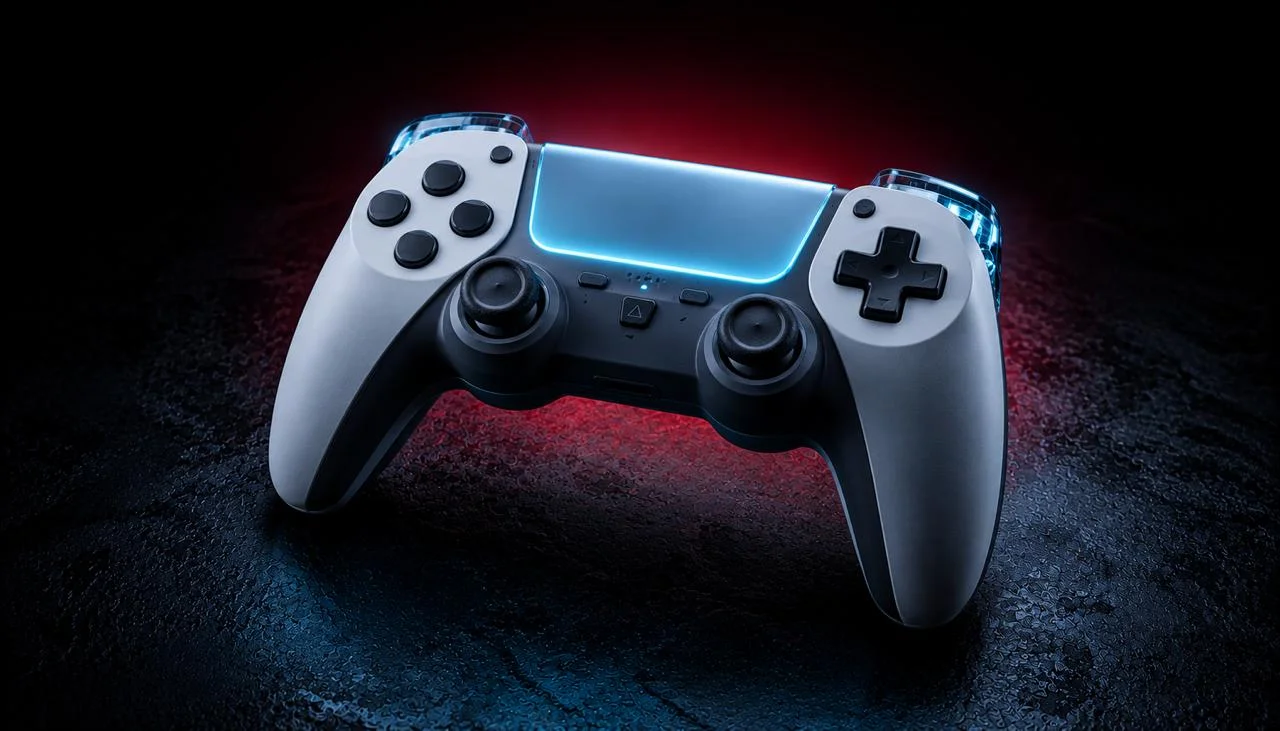
The DualSense is the PlayStation 5 wireless controller, and most connection or input problems with it trace to a few fixable causes you can rule out in minutes.
The DualSense connects to PC via USB-C cable (XInput-compatible out of the box) or Bluetooth (Win 10/11, macOS 11+, Linux 5.10+). Haptics and adaptive triggers only work on USB or through DualSenseX / Steam Input, vanilla Bluetooth strips them. The fastest diagnostic is the pinhole reset on the controller back, then re-pairing while testing in JoyCheck.
Key takeaways
- The DualSense is a USB HID-compliant gamepad over USB-C; haptics and adaptive triggers stay disabled in vanilla Bluetooth on Windows unless DualSenseX or Steam Input bridges them.
- Power-cycling the controller via the pinhole reset on the back (paperclip, about 5 seconds) clears most pairing state.
- A 30-second browser test isolates the hardware from the connection layer before you touch any setting.
- Rumble and adaptive triggers are not exposed via the Gamepad API, so a missing haptic in JoyCheck is expected, not a fault.
- After all four fix tiers, if JoyCheck still cannot see the controller on multiple PCs, the USB-C port or Bluetooth chip has failed.
◆ VERIFIED
DualSense adaptive triggers use voice-coil motors capable of variable resistance up to roughly 8.5 N, substantially higher than the spring-loaded triggers in DualShock 4 [1]. Trigger stickiness is almost always contamination (dust, food, drink residue) and resolves with compressed air, not a hardware replacement.
Skip the reading: run the 30-second test
- Connect the DualSense to your PC, USB-C cable preferred for the first test (eliminates Bluetooth as a variable).
- Press the PS button to wake it.
- Open the controller tester and press any button or stick.
- Watch for the live input diagram within 5 seconds.
- If JoyCheck sees it, the hardware works, see “What hidden gotchas should I watch for?” below. If not, the connection layer is the problem.
Why do DualSense connections fail?
DualSense connections usually fail for one of six reasons: a charge-only USB-C cable, stale Bluetooth pairing, a controller still bonded to a PS5, out-of-date firmware, a corrupted HID driver from DS4Windows or DualSenseX, or another app holding the controller in exclusive mode. Each has a fast fix, so rule them out in order.
Six common causes:
- Power-only USB cable. The cable bundled with the PS5 carries data; many third-party USB-C cables are charge-only. If Windows lists the controller as “Unknown device” or just shows it charging, swap the cable first.
- Bluetooth pairing got stale. Windows remembers a paired DualSense but can’t reconnect to it. Forget the device on Windows, hold Create + PS for 3 seconds until the light bar flashes, re-add.
- Last paired with a PS5 console. The DualSense bonds to one host at a time. After PS5 use, it forgets the PC. Re-pair to switch.
- DualSense firmware out of date. The firmware updater is PC-only. Plug into Windows and open the DualSense Firmware Updater for updates [2].
- Driver corruption. DS4Windows, DualSenseX, or older Steam Input versions can leave the HID stack in a stuck state. Symptoms: rumble fires intermittently, light bar flickers, controller drops connection.
- Exclusive-mode capture. Steam Input or Remote Play can hold the DualSense in exclusive mode, every other app loses access. Close those apps before testing.
What do you do once you’ve confirmed the controller isn’t detected?
Once JoyCheck confirms the controller is not detected, work four fixes in cost order and stop at the first that works: a free pinhole reset, a free Bluetooth re-pair, a free driver helper like DualSenseX or DS4Windows, and a $15 to $20 official USB-C cable as the wired fallback. Most failures clear at the reset.
Four options, ordered by cost. Stop at the first one that works.
| Tier | Cost | Fix | Time | What it does |
|---|---|---|---|---|
| 1 | Free | Pinhole reset | 60 seconds | The DualSense has a small reset hole on the back, beside the Sony logo, near the right grip. Resetting clears all pairings and Bluetooth state cleanly. |
| 2 | Free | Re-pair Bluetooth | 2 minutes | After the pinhole reset, BT pairing should work first time. |
| 3 | Free | DualSenseX / DS4Windows | 5 minutes, Windows | For full feature support (rumble, adaptive triggers, gyro, touchpad), you need a driver-level helper. Two well-maintained options. |
| 4 | $15-20 | Official USB-C cable | Last resort | If wireless pairing keeps failing, fall back to wired. Use the official Sony USB-C cable that shipped with the PS5 (or any USB-C cable rated for USB 2.0+ data transfer, not just charging). |
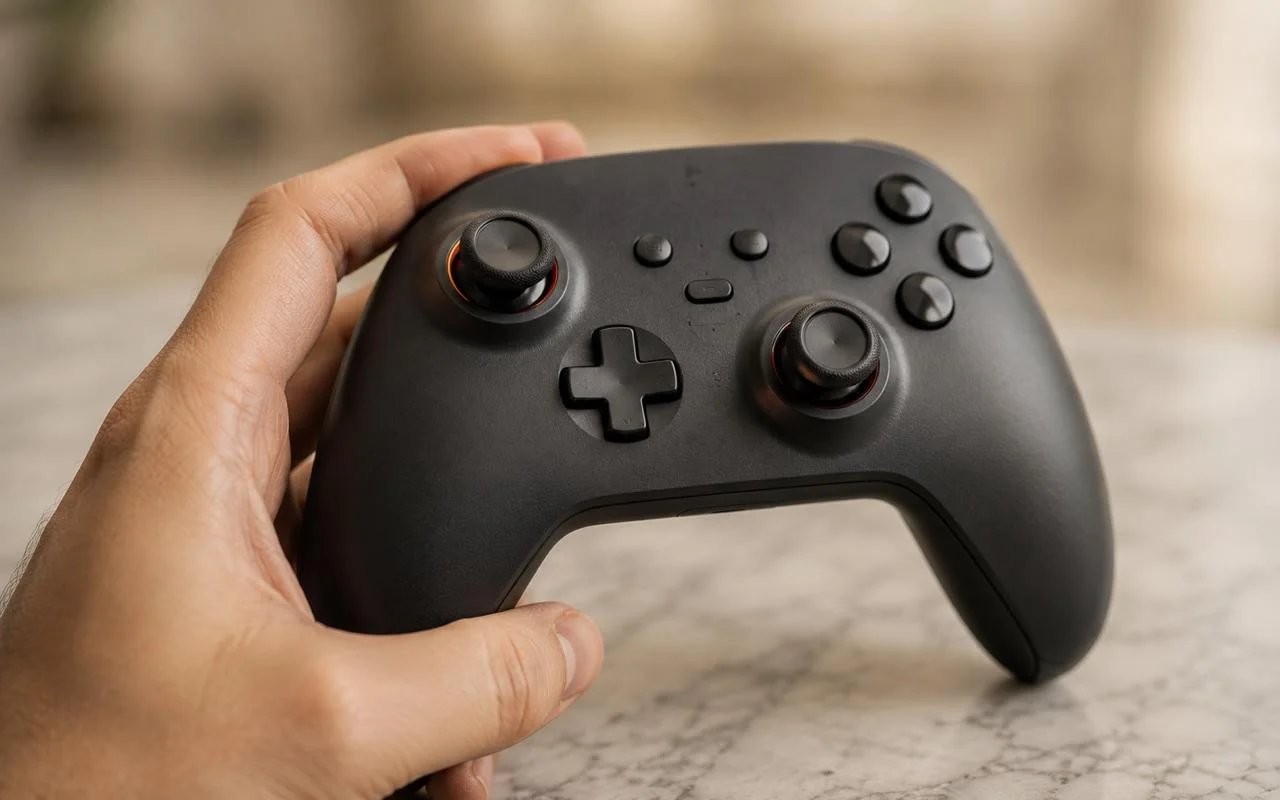
In my hardware-diagnostic work, the pinhole reset on the back of the DualSense clears more connection faults than any setting change, and it costs nothing. Before anyone buys a cable, I have them run a 30-second JoyCheck test: if the browser sees the controller, the hardware is fine and the fault is in the connection layer. The one thing a reset cannot restore is haptics and adaptive triggers over vanilla Bluetooth on Windows, so I keep a USB-C cable on the desk for that.
Taimoor Bamazai, founder, Elites Algorithm Limited
How does DualSense behave on each platform?
The DualSense behaves differently on each platform: Windows gets native XInput over a cable but strips haptics and adaptive triggers on plain Bluetooth, macOS 11.3+ restores them only through Steam Input, Linux 5.10+ runs it plug-and-play through hid-playstation, and every modern browser reads basic input but no rumble. The cable is the most consistent path.
Windows 10 / 11. Native XInput support via cable. Bluetooth works without drivers but strips haptics + adaptive triggers. For full features on Bluetooth, use DualSenseX or DS4Windows.
macOS. macOS 11.3+ supports DualSense via Bluetooth and USB. Haptics + adaptive triggers work in Steam games via Steam Input. Outside Steam, third-party tools are limited, most Mac games use basic XInput input.
Linux. Kernel 5.10+ supports DualSense via hid-playstation. Modern distros work plug-and-play. The SteamLink + Steam Input path handles haptics + adaptive triggers in Steam games [3].
Browser. All modern browsers see the DualSense via the W3C Gamepad API. Chrome and Edge expose the basic input (sticks, buttons, triggers), but haptics and adaptive triggers are not exposed via the Gamepad API. JoyCheck reads input only.
Which devices is DualSense compatible with?
The DualSense is compatible with Windows, macOS, Linux, and any device with a modern browser. Buttons, sticks, and basic triggers work everywhere over both USB and Bluetooth. The advanced features, rumble, adaptive triggers, light bar, touchpad, and gyro, need a cable, a driver helper, or Steam Input depending on the platform, as the table below sets out.
| Feature | Windows USB | Windows BT | macOS USB | macOS BT | Linux USB | Linux BT | Browser |
|---|---|---|---|---|---|---|---|
| Buttons + sticks | ✓ | ✓ | ✓ | ✓ | ✓ | ✓ | ✓ |
| Triggers (basic) | ✓ | ✓ | ✓ | ✓ | ✓ | ✓ | ✓ |
| Rumble | ✓ | DSX/DS4W | Steam Input | Steam Input | ✓ | ✓ | ✗ |
| Adaptive triggers | ✓ | DSX/DS4W | Steam Input | Steam Input | partial | partial | ✗ |
| Light bar control | ✓ | DSX/DS4W | Steam Input | Steam Input | ✓ | ✓ | ✗ |
| Touchpad | ✓ | DSX/DS4W | Steam Input | Steam Input | ✓ | ✓ | ✓ (basic) |
| Gyro | ✓ | DSX/DS4W | Steam Input | Steam Input | ✓ | ✓ | partial |
What hidden gotchas should I watch for?
The hidden gotchas are mostly Bluetooth limits people mistake for faults: missing rumble, adaptive triggers that never pull tight, a light bar stuck on one color, a touchpad that clicks but does not move the cursor, and a mic that stays on after a session. None of these are hardware failures, and each has a known workaround below.
“Rumble works on PS5 but not on PC.” Vanilla Bluetooth doesn’t expose rumble. Use Steam Input, DualSenseX, or DS4Windows, OR switch to USB cable for native support on Windows 10/11.
“Adaptive triggers don’t pull tight in my game.” The game needs explicit DualSense API integration. Native PS5 games on PC (e.g., God of War, Returnal) implement it. Other games are stuck at standard trigger pressure, DualSenseX can fake some adaptive behavior.
“Light bar is stuck blue / red / random color.” Bluetooth pairing in progress = pulsing white. Connected to PS5 = blue. PC use = varies by driver. DualSenseX lets you fix the color for visual consistency.
“Touchpad clicks but doesn’t move the cursor.” Vanilla Bluetooth exposes it as a touch surface but not a pointing device. DualSenseX maps it to a virtual mouse if you want cursor control.
“Mic icon stays on after a session.” The DualSense mic doesn’t auto-mute on PC. Hold the mic-mute button (between the touchpad and PS button) until the LED goes orange.
When should you replace the controller?
You should replace the controller when all four fix tiers fail and JoyCheck still cannot see the DualSense on multiple PCs, which means the USB-C port or Bluetooth chip has failed. Sony’s standard warranty is 12 months in most regions; EU consumer law extends some warranties to 2 years.
For stick drift specifically, see our DualSense stick-drift guide, the DualSense Edge offers user-swappable stick modules for about $25. Standard DualSense users can install Hall-effect aftermarket modules from GuliKit [4] or eXtremeRate [5] for around $30 plus soldering.
How do I test the fix in 30 seconds?
To test the fix in 30 seconds, open JoyCheck in any modern browser, press the PS button, and run every input once: both sticks, both triggers, every face button, the D-pad, the touchpad, and the mic. If each one lights up in the live diagram, the fix held. A missing rumble is expected.
After every fix, run a full controller test in JoyCheck:
- Open the gamepad test in any modern browser.
- Press PS or any button, the live input diagram appears.
- Run through every input: both analog sticks, triggers (squeeze for the adaptive resistance test), all face buttons, D-pad, Touchpad click and swipe, Mic, Options, Create, PS.
- Confirm each input lights up in the diagram.
If everything responds, you’re done. If rumble or adaptive triggers are missing, see Tier 3 (DualSenseX) or Tier 4 (wired) above.
Sources and references
- Sony DualSense controller patent (US20210178265A1). The published patent describing the adaptive-trigger voice-coil mechanism and its variable-resistance design, the basis for the trigger-resistance figures in this guide.
- PlayStation DualSense Bluetooth pairing and firmware support. Sony’s official support page for pairing the DualSense over Bluetooth and running the Windows DualSense Firmware Updater.
- Steam Input on Steam Community. The Steam Link and Steam Input reference used for the macOS and Linux haptics and adaptive-trigger path inside Steam games.
- GuliKit. Manufacturer of Hall-effect stick modules referenced as a drift-resistant aftermarket option for the standard DualSense.
- eXtremeRate. Aftermarket controller-parts supplier referenced for Hall-effect replacement stick modules that fit the standard DualSense.
Does the DualSense work on PC?
Yes. Windows 10/11 supports it natively via USB-C cable (full features) or Bluetooth (basic input only, no rumble, no adaptive triggers). For wireless feature parity, install DualSenseX ($4) or DS4Windows (free).
Why don't the adaptive triggers work on PC?
Adaptive triggers are exposed via the DualSense's vendor-specific HID protocol, not standard XInput. Games need explicit API integration to drive them. Native PS5 PC ports (e.g., God of War, Spider-Man) implement it. For other games, use DualSenseX to simulate adaptive trigger behavior.
How do I update DualSense firmware on PC?
Download Sony's DualSense Firmware Updater for Windows. Connect via USB-C. The tool reports current firmware and prompts an update if one is available. Mac and Linux users need Windows for firmware updates (or a PS5 console, which auto-updates the controller).
Can I use the DualSense on iPhone?
Yes. iOS 14.5+ supports DualSense via Bluetooth. Pair via Settings → Bluetooth like any other device. Compatible games (Genshin Impact, Resident Evil 4 Mobile, native iOS console-style titles) expose the standard input set.
Why is my DualSense's light bar blinking white forever?
Pairing mode is active but Windows isn't picking it up. Two fixes: (1) move closer to the BT receiver, DualSense BT range is shorter than Xbox; (2) do a pinhole reset (see Tier 1) and retry. If pairing still fails, your PC's BT chip may need a firmware update from your motherboard manufacturer.
Why does my DualSense disconnect after 10 minutes idle?
Auto-sleep. The DualSense puts itself to sleep when idle. Press PS to wake. This isn't a connection issue, the controller is conserving battery. Some apps prevent this by sending a heartbeat ping (Steam does this automatically).
Can I use the DualSense Edge on PC?
Yes, the Edge connects exactly like the standard DualSense. The Edge's user-replaceable stick modules are a separate hardware feature; from the PC's perspective, it's a DualSense. All the same Tier 1-4 fixes apply.
JoyCheck sees my DualSense but my game doesn't, what now?
The game is using DirectInput or its own API rather than XInput. Three options: (1) enable XInput in the game's controller menu; (2) add the game to Steam as a Non-Steam Game and let Steam Input wrap it; (3) use DualSenseX or DS4Windows to expose the controller as a virtual Xbox 360 controller, every game sees it that way.
Test your controller in the browser
No install, no account. Your inputs never leave your device.